Backwoods Home Magazine


Remembering
Sept. 11, 2001

Enter A Keyword
Subscribe to Backwoods Home Magazine

Features
 Home Page
 Current Issue
 Article Index
 Author Index
 Previous Issues
 Newsletter
 Letters
 Humor
 Free Stuff
 Feedback
 Recipes
 Tell-A-Friend
 Print Classifieds
 Trading Post

BHM Blogs
 Dave Duffy
 Lenie Duffy
 Massad Ayoob
 Ask Jackie Clay
 Claire Wolfe
 Bramblestitches
Retired Blogs
 David Lee
 Energy Questions

Quick Links
 Home Energy Info
 Jackie Clay
 Ask Jackie Online
 Dave Duffy
 Massad Ayoob
 John Silveira
 Claire Wolfe

Forum / Chat
 Forum/Chat Info
 Enter Forum
 Lost Password

General Store
 Ordering Info
 Subscriptions
 Anthologies
 T-Shirts
 Books
 Back Issues
 Help Yourself
 All Specials
 Classified Ad

Advertising
 Web Site Ads
 Magazine Ads

More Features
 Links
 Country Moments
 Radio Show
 Meet The Staff
 Contact Us/
 Address Change
 Write For BHM
 Privacy Policy

News/Politics
 Dave Duffy
 John Silveira
 Columnists


BHM Chat
Help, Tips, and
Troubleshooting


General Use

Welcome to the BHM online chat service.

To log in, simply enter your username/handle in the Login text box and press Enter. A sample login dialog is shown below:

To communicate in the chat room, you may simply type text into the multi-line text box towards the bottom of the window and press Enter to send your message. Your message will appear in the content (larger) box above it when it is received by the chat server. Others may then read what you have typed, and respond to you. If you wish to get another user's attention, simply type in (or click if available) their name somewhere within the message that you are sending them. Their message will appear in a different color, and a sound will be played. A sample text input box is shown below:

You will notice various buttons within the chat room. These allow you to logout, request help float/dock the chat room, turn on/off audio, specify color settings, and more. Buttons are described in detail in the Button Toolbar section of this help page. A sample selection of buttons is shown below:

If you wish to exit the chat room at any time, simply click the Logout button.


Button Toolbar

The button toolbar provides access to various features of this chat room. The button toolbar can be found after you have logged in. Below is a description of each button.


Color Button. This button allows you to change your current text color.
Emoticons Button. This button allows you to select an emoticon from the emoticon popup window.
Audio Emoticons Button. This button allows you to select an audio emoticon from the emoticon popup window.
Timestamp Button. This button allows you to enable or disable timestamps.
Audio Button. This button allows you to enable or disable sounds within your chat room window.
Copy Content Button. This button allows you to copy content from your chat room window.
Font Zoom In Button. This button allows you to increase the current font size.
Font Zoom Out Button. This button allows you to decrease the current font size.
Clear Screen. This button allows you to clear the contents of the chat screen.
Float/Dock Button. This button allows you to float or dock the chat room.
Help Button. This button allows you access to the chat room help file.
Logout Button. This button will log you out of the chat room.


Image Emoticons

Emoticons are textual representations of emotions, for conveying feelings in an atmosphere where it would be difficult to express them otherwise. Certain text emoticons are recognized by the chat room and will automatically be translated into their image counterpart. To your right is a list of the available emoticons. Simply type in text that you see in the second column, and the corresponding image (shown in the third column) will appear in the chat room.

In most browsers, if you click on the Emoticons button in the Button Toolbar, the popup window can remain open until you choose to close it, to make selecting emoticons faster during the time you are in the chat room.

Smile :)
Grin :D
Blink *)
Tongue :p
Sad :(
Angry :<
Unsure :?
Laugh lol
Smug :/
Surprised :o
Wink ;)


Audio Emoticons

*beep*
*bird*
*bleep*
*evil*
*harp*
*meow*
*slap*
*welcome*
*whip*

Audio Emoticons, or Emotauds, work similar to image emoticons, except that instead of displaying an image, they play a sound for all to hear. To your left is a list of the default audio emoticons provided with SigmaChat. Your chat room operator may have added additional audio emoticons, or removed emoticons shown to the left. To find out which emoticons you have access to, click the Audio Emoticon button in the Button Toolbar.

In most browsers, the popup window can remain open until you choose to close it, to make selecting audio emoticons faster during the time you are in the chat room.


Font Size


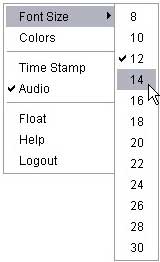
You may change the size of your font by accessing the right-click content menu. To do so, right click on the message display area and a small menu will appear. Select "Font Size" to show the font selections allowing you to change your font size. Click on the font size you'd like to use. You may also increase/decrease the size of the displayed text by repeatedly clicking the Zoom-In and Zoom-Out buttons located in the Button Toolbar.


Text Color


To change your text color, you may right click in the message display area and select "Colors". You may also access the color dialog by clicking the Color button within the Button Toolbar.

A sample color dialog is shown to the left. You may select a color directly from the web-safe palette, or you may manually adjust the red, green, and blue scrollbars to find the color that you wish to use. Click the Apply or OK button to apply your new color settings.


Commands

The chat room recognizes various text commands. A complete list of commands presently recognized by the chat room is shown below. You will notice that these commands are IRC-like in nature.

Do not use brackets. Brackets are shown to differentiate commands from parameters.

Private messages displayed within the main content area may appear in a unique color to be easily differentiated from messages intended for the (public) chat room.
Command Macros Description
/beepall Beep on all messages, audio notification.
/clign Clear Ignore List
/cls Clear Screen
/create [subroom] [password] Create Subroom
/ignore /i Show Ignore List
/ignore [username] /i Ignore User
/join [subroom] [password] Join Subroom
/leave Leave Subroom
/listen [username] Do not Ignore User
/msg [username] [message] /m, /p Send Private Message
/visual Toggle Visual Notifications
/whereis [username] What Room is [username] in? [English]
/whoami Who Are You?


URL Addresses

URL's, such as http://www.backwoodshome.com or www.backwoodshome.com, as well as email addresses such as mailto:webmaster@backwoodshome.com or webmaster@backwoodshome.com may be entered into the chat at any time to share with. Some systems may show URL's in a different color (usually blue) and may allow you to click on them to launch either another web page, or your default mail application.

Note: Many modern systems are now equipped with popup-blockers. Web sites, and popups launched from the chat room may be prevented by your browser. If this happens you can try to override. Smply hold down the "Ctrl" button while clicking on a popup link or button.


Subrooms

The chat room is capable of hosting multiple subrooms. Subrooms are shown in the pulldown menu on the lower right hand side of the window, just below the user list. You may create, join, and leave subrooms as you please. Subrooms may be password protected as well for privacy. There is no limit on the amount of subrooms that may be created, however; user created subrooms are automatically removed when they are empty.

When you create a subroom, it will have the same name as your username.

To create a new subroom, type /create [subroom_name]. Subroom names are subject to the same limitations as usernames. They should be between 2 and 32 characters in length, and may not contain spaces. You will automatically be placed in a subroom that you create.

To create a private room for a private conversation, you may password protect the subroom. Type /create [subroom_name] [subroom_password]. All users wishing to join your subroom will be required to enter the password you have chosen. Passwords are subject to the same limitations as subroom names. After you have created the subroom, remember to send a private message to each person you want to join you and include the password!

To leave a subroom, type /leave or select a different subroom from the subroom pulldown menu. You will then be brought back to the main chat room. If the subroom you leave is empty, it may be removed from the subroom list.

To join an existing subroom, type /join [subroom_name]. If the subroom is password protected, you will need to supply the password (not neccesary for system operators) by typing: /join [subroom_name] [subroom_password].

The chat room lists users that are in the current subroom by displaying their Usernames first (below administrators if logged in). Users in another subroom are displayed with a different color in the user list. To determine where another user is (what subroom he/she is in) simply double click on that users name in the user list, or type /whereis [username].


Private Messages

To send private messages, use the /msg command. I.e., to send the private message Hello, there to the user Timmy, you would type:

/msg Timmy Hello, there

Private messages are shown in a seperate color within the display to be easily differentiated.

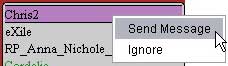
You may also initiate a private message session with another user by double clicking on his/her name, or by right clicking on a username and selecting "Send Message". Once doing so, a popup dialog will appear for you to communicate with the other user in privately. The recipient may receive all messages in the main content area until he/she also double clicks on your name. To close a private message session, simply click the X in the upper-right hand portion of the window. Audio emoticons are not available within private message sessions.


Profanity Filter

The chat room does not censor profanity. That said, we expect everyone to behave like an adult. On second thought, we expect everyone to act like a responsible, considerate adult.


Timestamp


You may toggle the timestamp on/off by clicking the button shown above. The timestamp may also be accessed from the right-click menu in the main content area (where messages are displayed). When this feature is turned on, all incoming messages will be displayed with the time that they were received. This time is relative to your own computer, and the timezone in which it resides.


Float & Dock


Click the Float/Dock button to load the chat room into a separate window. This feature allows you to conserve screen space while you chat by minimizing the browser window that you floated the chat room from. When you wish to return the chatroom to it's browser, simply reclick the Float/Dock button.

Note: With most modern web browsers, you must keep the browser window that the chat room was floated from open. Closing this window, or changing the web address may cause the chat software to close.


Copy Content Dialog


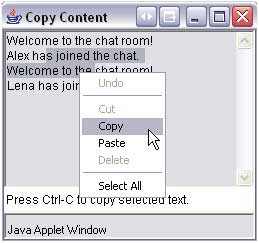
When clicked, the Copy Content button will display a popup window allowing you to easily copy text entered within the chat room (both private and public messages may be copied) by right-clicked, or using either the Ctrl-C (PC) or Alt-C (Apple) keyboard commands to copy text to your system clipboard.


Message Scrollback

The Message Scrollback Feature allows you to scroll back through the previous messages you have entered into the chatroom. To use this feature, simply press the Up and Down arrow buttons in the blue box where you type messages. If you make a typing error, this feature makes it easy to simply go back and edit the message that you have just typed. Scrollback, however, is limited.


Connection Difficulties


  • I use WebTV and cannot connect to the chat room.

    Sorry, but since WebTV does not support Java™, you will not be able to access the chat room.

  • My web browser reports "load: class Client not found" error when loading the chat room

    The Load class Client not found error is among the most notorious of Java applet error messages, and can be caused by a number of different problems. Usually, this problem indicates that your web browser has downloaded/ cached an invalid copy of our chat software (cache instability or an error in download). Minor network glitches between your computer and the chat servers can also cause the problem. Ninety-nine percent of the time, the problem can be resolved by emptying your browsers cache (or Temporary Internet Files), then shutting down all instances of your web browser, and trying again. In rare circumstances, a reboot may be required.

    To empty your browser's cache using Microsoft Internet Explorer:

    1. Click on Tools from your browser's main menu.
    2. Select Internet Options
    3. Under the General tab, click Delete Files... in the Temporary Internet files section.
    4. Important: Shutdown all open instances of your web browser.

    To empty your browser's cache using Netscape:

    1. Click on Edit from your browser's main menu.
    2. Select Preferences
    3. Select and expand the Advanced category.
    4. Click on Cache
    5. Under Set Cache Options:
      1. Click Clear Memory Cache
      2. Click Clear Disk Cache
    6. Click OK
    7. Important: Shutdown all open instances of your web browser.

  • When I attempt to open the Java™ applet, I see a blank gray box only.
  • My web browser reports a "bad magic number" error when loading the chat room
  • When I attempt to open the Java™ applet, I see a red checkbox only.
  • Try emptying your browser's cache first (see above). Remember to shut down all instances of your web browser after emptying the cache (temporary internet files). If this does not work, it is possible that you do not have Java™ installed. Please visit Sun's Free Java™ Download Site to download and install Java. Java is the most powerful extension to web technology today, and no web browser is complete without it!

  • When I attempt to open the chat room, a message appears telling me to install software. What is wrong?

    You need to install Java™ support (see above) On most computers, you can simply follow the on-screen directions to have Java™ installed for you automatically by your web browser. If this fails, we strongly encourage you to visit Sun's Free Java™ Download Site to download and install Java. Java is the most powerful extension to web technology today, and no web browser is complete without it!

  • My Macintosh computer is having various problems with the chat room.

    The chat room is not supported on Macintosh OS 8.x and below systems. It runs best on OS X when using MSIE, Netscape or Mozilla. When using OS 9 we recommend using MSIE only. Problems have been reported when using the Safari browser.

  • I connect to to the internet with AOL, but am unable to login to the Java™ applet.

    Do not use the built-in AOL web browser. Instead, use the web browser (usually Microsoft Internet Explorer) that was included with your computer/operating system.

  • When I click "Login" nothing happens, or a message appears telling me that it cannot connect, or that I have been disconnected. What is wrong?

    The chat server may be offline. Try again in fifteen minutes. It is extremely rare that the chat servers go down, and there are automated systems in place to ensure they are back up and running within 10 minutes of going down. Secondly, and the most likely scenario, is that you are using a computer restricted by a firewall; see below:

  • I am using a computer behind a firewall, or in a work/education environment. How can I connect?

    You, or your network administrator, will need to allow TCP access on ports 8000 through 8009 at client.sigmachat.com. On some LAN firewalls, you may simply set the security setting to "Low" while you wish to use our chat software.

  • I have been banned from a chat room, and feel that I can behave myself now. Who should I contact to get un-banned?

    You will need to contact webmaster@backwoodshome.com. If you were banned, it was for acting like a serious jerk. A well-written apology to everyone you abused, including the webmaster who really doesn't have time for such nonsense, might get you reinstated. If it does, there will NOT be a third chance.

  • I am still having problems. Who should I contact?

    You will need to contact webmaster@backwoodshome.com. Include as much detailed information as possible. We'll do our best to help you, but make no promises.

Top Of Page


www.backwoodshome.com designed and maintained by Oliver Del Signore
© Copyright 1998 - Present by Backwoods Home Magazine